It’s been a while since I put together the list of eight best IDEs for STM32. At the time of writing that article, no one publicly knew what was about to happen. ST acquired Atollic, taking over their STM32 IDE, TrueStudio. As a result of these events we finally have something “made” by ST, namely STM32CubeIDE. So let’s see what they have to offer.
TrueStudio for STM32 + CubeMX = STM32CubeIDE
This IDE had already taken second place in my survey of most commonly used environments even before the rebranding. That doesn’t surprise me, because it had quite a large following. ST has now added a few interesting things that make the environment basically self-sufficient.
Until recently, you needed STM32CubeMX and some IDE. In CubeMX you configured everything for your platform, generated the project skeleton with initialization code, and then you had to import that project into the IDE you use. The survey showed that most often it was SW4STM32 or TrueStudio.
CubeMX is now built directly into the IDE. What does that mean? You now only need a single tool, and that is STM32CubeIDE.
Of course, a separate STM32CubeMX is still maintained so that someone who uses another IDE or a “notepad” can also generate their projects.
You can download the latest STM32CubeIDE directly from ST >here<.
How to work with CubeIDE?
I’ve been using only STM32CubeIDE for some time now and I must say I’m satisfied. Projects generate faster, which is important to me when creating content for you on the blog. The latest version on the day of writing this post is v1.1.0.
The environment is available for all the “big” OSes, i.e., Windows, various Linuxes, and macOS, which the old TrueStudio didn’t have. Unfortunately, I haven’t tested it on anything other than Windows. I’m a sad Windows user 😉
Generating a project
Honestly, just like before with CubeMX and, for example, Atollic. You simply do everything in one place now. The project generator looks identical to the “standalone” Cube.
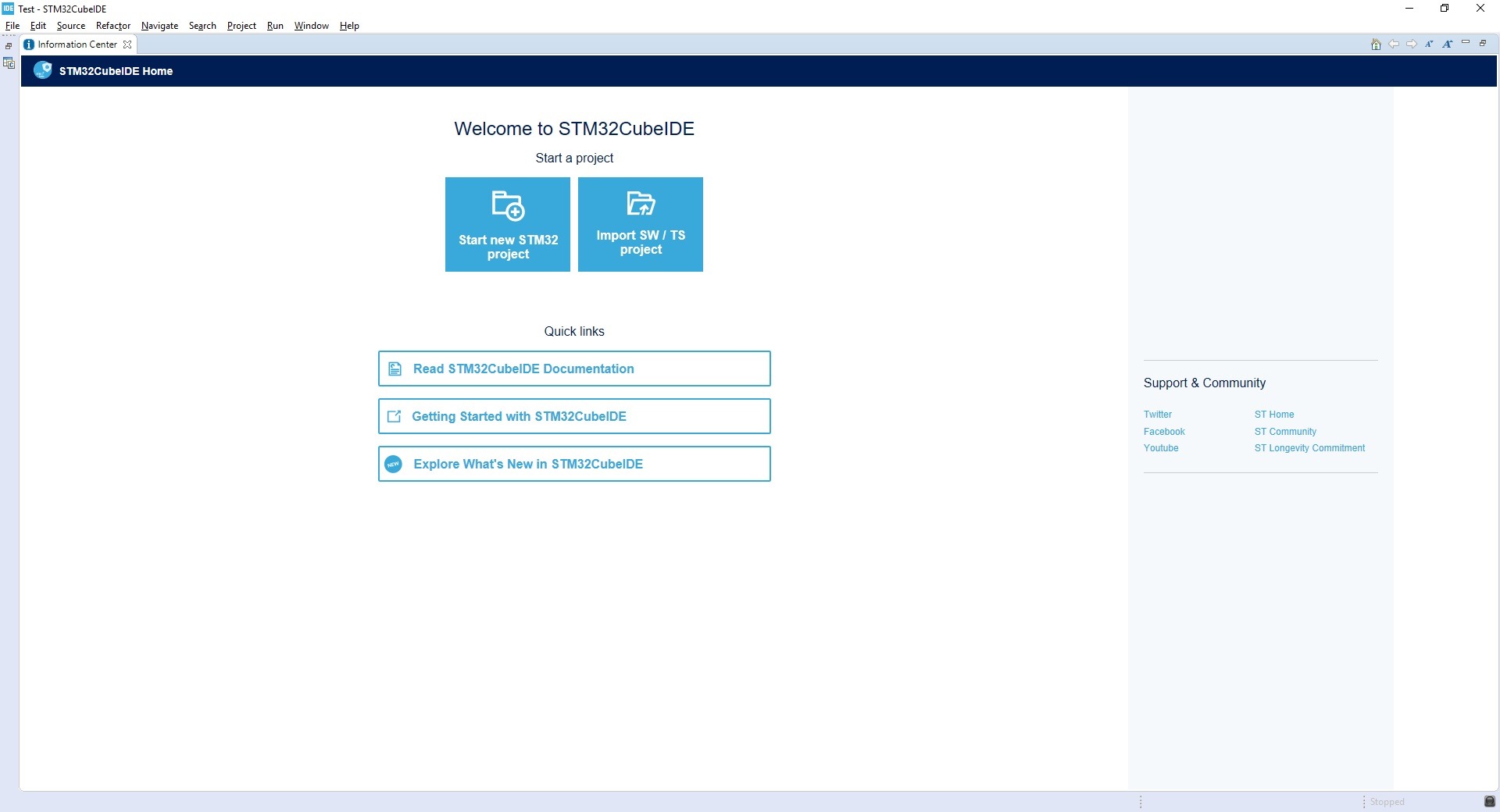
You start by clicking Start new STM32 project. You can also import a project that was generated for SW4STM32 or TrueStudio. But be careful, because it doesn’t always work correctly and may wreck your project. Better make a backup just in case. I’ve saved myself like that more than once.
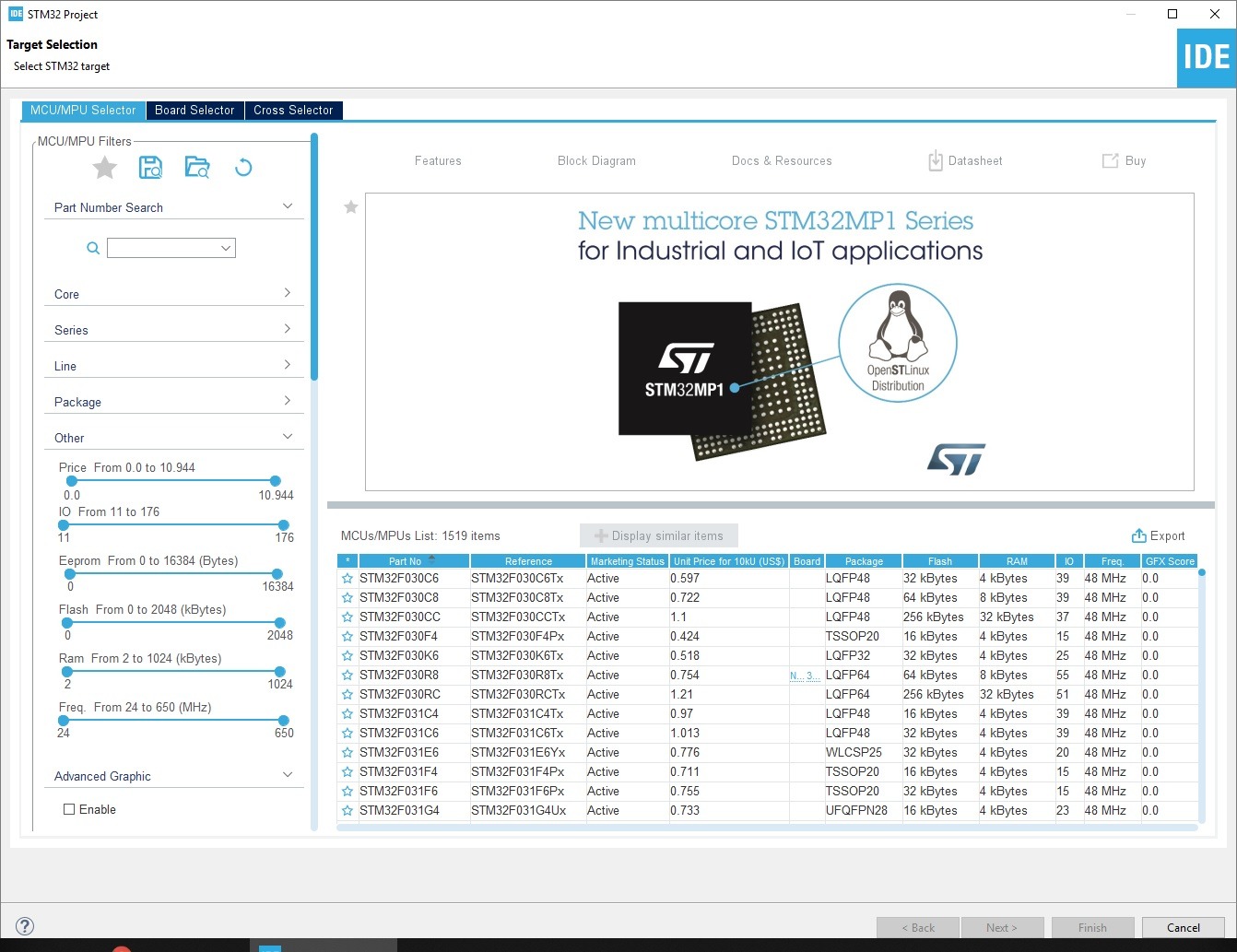
After choosing a new project you’ll see the familiar MCU selector. You pick your microcontroller and move on.
The IDE will churn for a moment, and you’ll finally see the familiar CubeMX view.
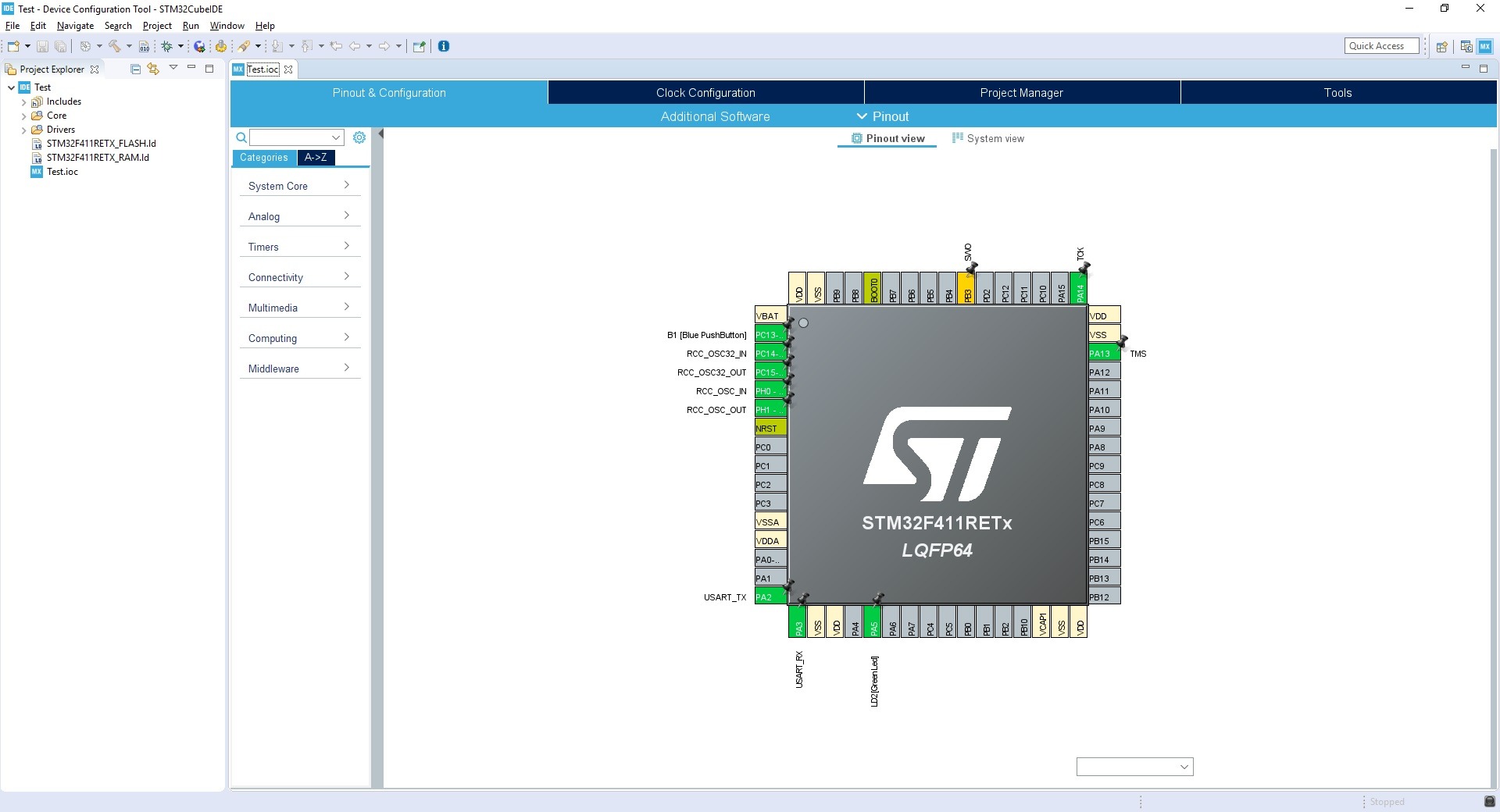
The creators added an Eclipse perspective dedicated to CubeMX. From what I can see, it pushes all other windows aside, revealing what’s most important during configuration—the Cube view.

When switching to a project’s *.ioc file, those files are linked to the Cube perspective and Eclipse suggests switching to it. That’s good.
Writing code
Coding works exactly the same as in any Eclipse. At any moment you can change the configuration in the built-in Cube and regenerate the project. I haven’t yet had my project files wiped, which I can’t say about the standalone CubeMX. Still, I always recommend having a backup – it’s still written in Java 😉
I noticed a few differences that may be irritating to some depending on their preferences for working with an IDE. Unlike SW4STM32, which I used before, function argument hints are set to auto-complete and guess.
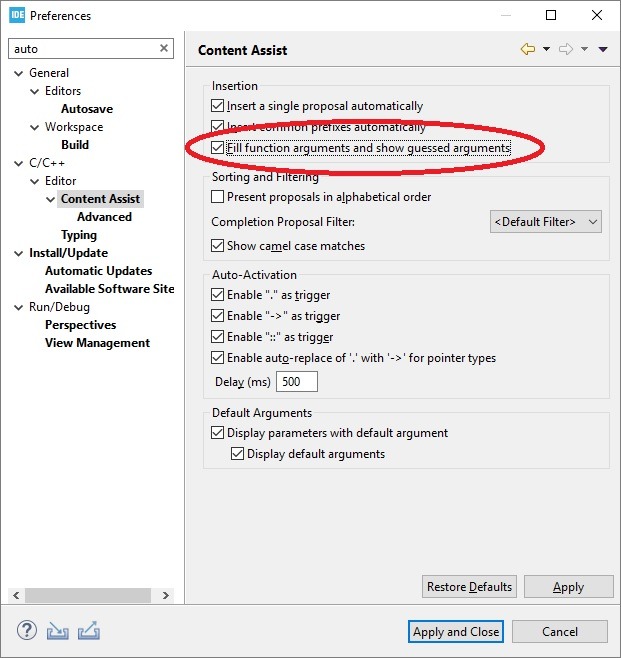
What does that mean? Using Ctrl+Space, not only will it match the function name, it will also fill in the arguments. It looks like below.
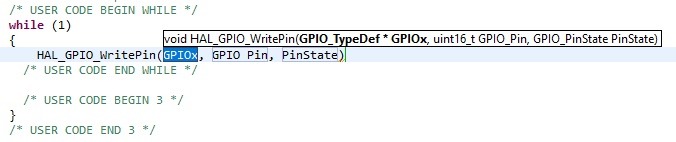
I typed “HAL_GPIO_W” and pressed Ctrl+Space. Not only did it complete the function name for me, it also inserted the argument names. It placed the typing cursor on the first argument. It didn’t know what to fill in, so it named the arguments as they are named in the function declaration.
Sometimes it actually guesses what I’d like to put there and it kind of works. Having encountered it for the first time, I felt awkward. But I’m lazy enough that I don’t want to disable it every time and I worked with it a bit. In the end I’d say it’s not annoying enough for me to complain a lot. Still, someone switching from SW4STM32 like I did may feel uneasy at first.
I haven’t noticed any more differences that matter to me. Maybe you know some? Share in the comments.
Running and debugging
Debugging basically works the same. This is Eclipse, so it’s the same everywhere. Breakpoints work well, and single-stepping too.
Unfortunately, when it comes to quickly running code, you won’t find that here. At least not without minor changes… Again I’ll use the example of switching from SW4STM32. You can call me a grumbler, but it’s true 🙂
System Workbench had that nice green “Play” icon like on a tape deck. It would send the compiled code to the microcontroller and immediately run it without any debug mode.
Yes, I can achieve the same effect by flashing in debug mode and running the code without breakpoints, but for me there are 3 differences:
- The debug binary loads onto the MCU significantly slower
- You’re expected to switch to the Debug perspective
- If you don’t clear the default breakpoint at main, you have to start the program manually
What are the consequences? Time! I don’t know how experienced you are and how you work with microcontrollers, but I often make hundreds of tiny changes that I want to test as quickly as possible.
A minor change in a console print, moving a pixel on a display, or something else that can be quickly verified by eye without a debugger. Such frequent switching into debug mode can really eat up a lot of time.
Here my laziness won again and for now I’m fine with it. I know you can add such a button. I tried once without success, so if you know how to do something like that you’ll have a special place in my microcontroller heart <3
Is it worth it?
I’ve basically listed only the drawbacks I noticed during my short adventure with the IDE. Does that mean it’s a bad IDE? Quite the opposite! I really liked working in SW4STM32, and STM32CubeIDE is almost identical to use. The ability to use Cube inside the IDE is a huge convenience.
I know you could add the CubeMX plugin to any Eclipse, but here we have an out-of-the-box solution with official support for this integration. It’s a much better solution than installing and configuring an IDE yourself.
Who would I recommend STM32CubeIDE to? Definitely all beginners, but not only them. I use it all the time, even though I’m no longer a beginner. I know quite a few developers simply don’t like Eclipse. I won’t try to convince you if you’re one of them.
If you’re already using the new IDE, share your impressions in the comments. I’m curious how you rate ST’s new-old creation.
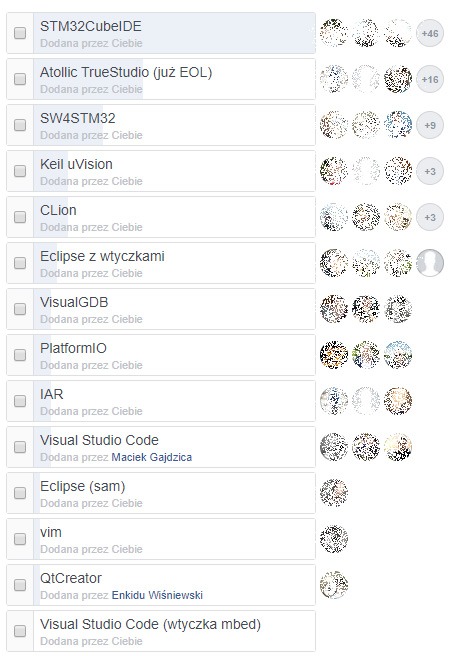
Finally, the current poll from the STM32 Polska group. It shows that the new IDE is popular among developers 🙂
Podobne artykuły






0 Comments